4 n8n Workflow Templates for PDF Generation

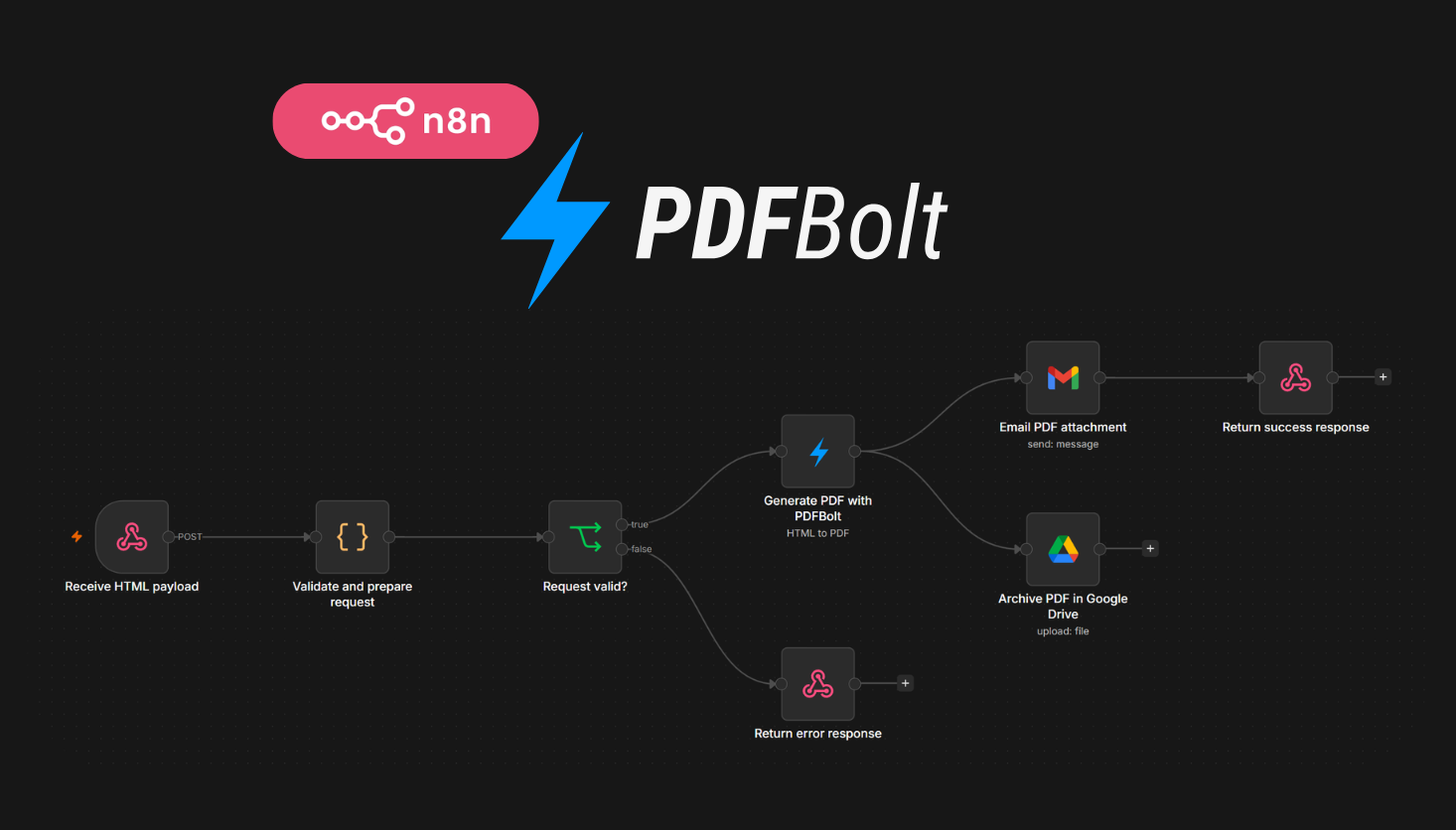
If you need n8n PDF generation, starting from a blank workflow takes longer than it should. The shape is usually the same: receive data, map it, generate a PDF, then send or return the file.
PDFBolt's verified n8n community node handles the PDF step inside n8n. It generates PDFs from templates, HTML, or live webpages without running your own browser service. This article walks through four importable n8n PDF workflow templates for template-based documents, HTML-based PDF delivery, Stripe invoice emails, and scheduled webpage reports.
You can import the workflows directly into n8n, or use them as examples when building your own PDF automation.
Why Use n8n PDF Workflow Templates
Generating the PDF is only one part of an n8n workflow. The file usually has to go somewhere: Gmail, Slack, a webhook response, or storage. The source also matters. HTML needs to render correctly, and webpages often need a wait condition so charts, images, or async content load before PDF generation.
An imported workflow gives you the node wiring upfront. You only replace the parts tied to your setup: the webhook payload, template ID, Stripe credentials, Gmail account, Slack channel, Google Drive folder, or target URL.
These workflows use the PDFBolt n8n community node, so the PDF step does not require a hand-built HTTP request. If you want full control over the request body and headers, the HTTP Request node guide covers that approach.
Quick Setup
Before importing a workflow, prepare:
- A PDFBolt account and API key from the PDFBolt API keys page.
- The PDFBolt community node in n8n.
- The app credentials required by the workflow, such as Gmail, Slack, Google Drive, or Stripe.
- A published PDFBolt template if the workflow uses templates. You can create your own template or pick one from the template gallery, then copy its Template ID into the PDFBolt node.
For installation and credential setup, use the n8n integration guide. The PDFBolt node is also listed on n8n's PDFBolt integration page.
Workflow 1: Generate and Email PDFs from PDFBolt Templates via Webhook
| Field | Value |
|---|---|
| Use when | The layout stays the same, but the data and recipient change for each PDF. |
| Best for | Invoices, certificates, receipts, quotes, contracts, order confirmations, onboarding documents. |
| PDFBolt node operation | Convert Template to PDF |
| Delivery | Gmail attachment and JSON webhook response |
| Needs | PDFBolt API key, published Template ID, Gmail credentials, app or service that can send a POST request |
| Published workflow | Generate and email PDFBolt template PDFs via Gmail webhook |
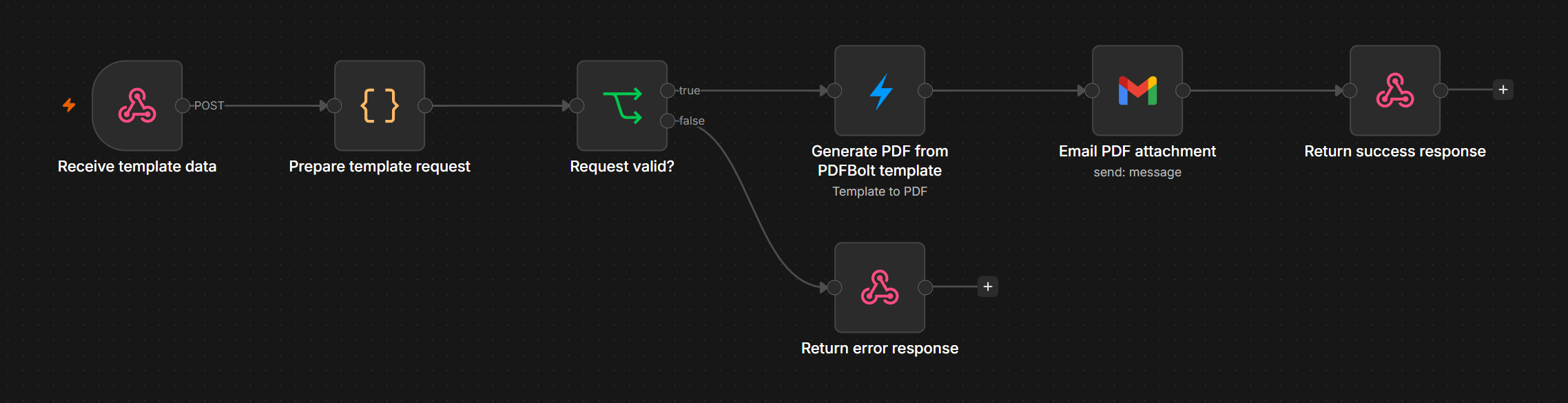
This workflow receives JSON through an n8n webhook, validates the required fields, sends templateData to a published PDFBolt template, emails the generated PDF through Gmail, and returns a JSON success or error response. Use it when the document layout is already defined and each request changes values such as customer data, dates, line items, or totals.
The layout lives in PDFBolt. n8n handles validation, delivery, and the response to the caller. You can update the PDF design later without changing the webhook or Gmail steps.
How It Works
- Webhook receives
templateDataandrecipientEmailfrom your app. - Code node validates the request, prepares the filename, email subject, and message.
- Invalid requests return a 400 JSON response.
- PDFBolt uses the published Template ID and
templateDatato generate the PDF. - Gmail sends binary field
dataas the PDF attachment. - Respond to Webhook returns a JSON success response with the filename and recipient email.
The keys inside templateData must match the variables used by the published template. For template setup, see the PDF templates documentation and the template management guide.
Workflow 2: Generate, Email, and Archive PDFs from HTML
| Field | Value |
|---|---|
| Use when | Another app sends complete HTML and n8n should deliver and archive the PDF. |
| Best for | Reports, generated summaries, event documents, certificates, internal documents, custom layouts. |
| PDFBolt node operation | Convert HTML to PDF |
| Delivery | Gmail attachment, Google Drive archive, JSON webhook response |
| Needs | PDFBolt API key, Gmail credentials, Google Drive credentials, app or service that can send a POST request |
| Published workflow | Generate, email, and archive PDFs from HTML with PDFBolt, Gmail, and Google Drive |
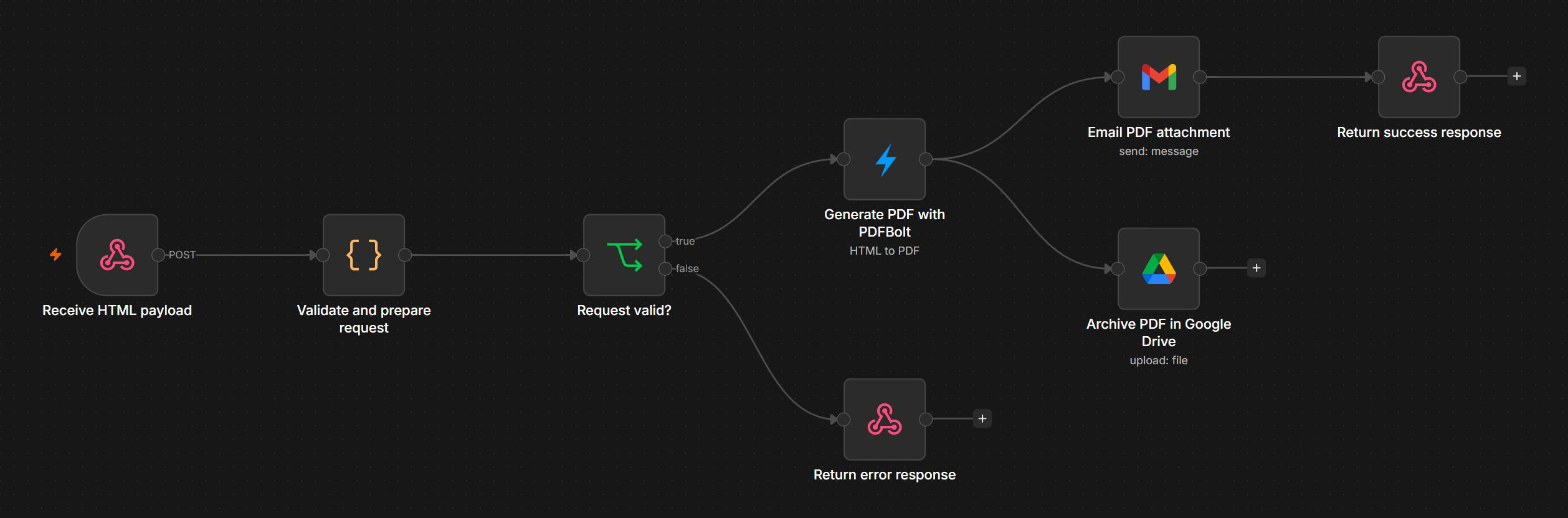
This workflow receives HTML through a webhook, validates the request, converts the HTML to PDF with PDFBolt, emails the PDF through Gmail, archives the same file in Google Drive, and returns a JSON response.
Use it when another app already owns the HTML and n8n is responsible for PDF generation, delivery, and storage. If the layout should be reused with structured data, use a PDFBolt template instead.
How It Works
- Webhook receives
html,recipientEmail, and optional delivery fields. - Code node validates required fields and prepares the filename, subject, and message.
- Invalid requests return a structured 400 JSON response.
- PDFBolt converts the HTML and returns the PDF as binary field
data. - Gmail sends binary field
dataas the PDF attachment. - Google Drive archives the same binary field.
- Webhook returns a JSON success response.
PDFBolt's Direct endpoint returns the PDF as binary field data in n8n. In Gmail, use that field as the attachment field. A mismatched binary field is a common reason the email sends without the PDF.
Use this HTML workflow when the caller already creates the document HTML. If the same layout will be reused with different data, move it to a PDFBolt template and keep n8n focused on validation and delivery.
For direct API usage outside n8n, see the HTML to PDF API.
Workflow 3: Generate and Email PDF Invoices from Stripe Payments
| Field | Value |
|---|---|
| Use when | A successful Stripe invoice payment should trigger a branded PDF invoice email. |
| Best for | SaaS billing, agencies, subscription businesses, paid invoices, Stripe invoice events. |
| PDFBolt node operation | Convert Template to PDF |
| Delivery | Gmail attachment |
| Needs | PDFBolt API key, published Template ID, Stripe credentials, Gmail credentials |
| Published workflow | Generate and email Stripe invoice PDFs with PDFBolt and Gmail |
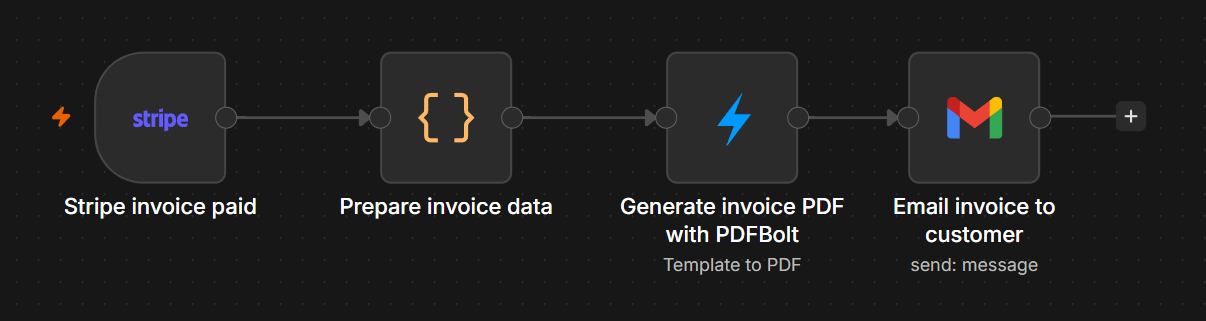
This workflow starts when Stripe sends an invoice.payment_succeeded event. The Code node maps Stripe's invoice object to your PDFBolt template fields. PDFBolt generates the PDF, and Gmail sends it to the customer.
Use this as a Stripe PDF invoice workflow when Stripe holds the billing data, but the PDF invoice should use your own layout and email copy.
The invoice.payment_succeeded event covers successful payment attempts. If the workflow should also run when an invoice is marked as paid outside Stripe, use invoice.paid instead.
How It Works
- Stripe Trigger runs when Stripe sends
invoice.payment_succeeded. - Code node reads
event.data.object, maps customer, line item, subtotal, tax, and total fields intotemplateData, and prepares the PDF filename. - PDFBolt uses the published Template ID and
templateDatato generate the invoice PDF. - Gmail attaches the PDF stored in binary field
dataand sends it to the customer email address provided by Stripe.
This workflow uses invoice-level tax totals. If you need tax rate labels for each line item, add a separate Stripe API step before PDFBolt.
For the full Stripe trigger, mapping, and delivery setup, see the n8n Stripe invoice workflow guide.
Workflow 4: Create Daily Webpage PDF Reports
| Field | Value |
|---|---|
| Use when | A webpage or dashboard should be saved, shared, and archived on a schedule. |
| Best for | Daily dashboard reports, authenticated status pages, audit snapshots, documentation archives, webpage-to-PDF reports. |
| PDFBolt node operation | Convert URL to PDF |
| Delivery | Slack file upload and Google Drive archive |
| Needs | PDFBolt API key, Slack credentials, Slack channel, Google Drive credentials, reachable webpage URL |
| Published workflow | Create daily webpage PDF reports with PDFBolt, Slack and Google Drive |
This workflow runs on a schedule, prepares report metadata in a Code node, sends a webpage URL to PDFBolt, uploads the generated PDF to Slack, and archives the same file in Google Drive. Use it when your team already checks a web dashboard and wants a dated PDF copy posted and stored every morning.
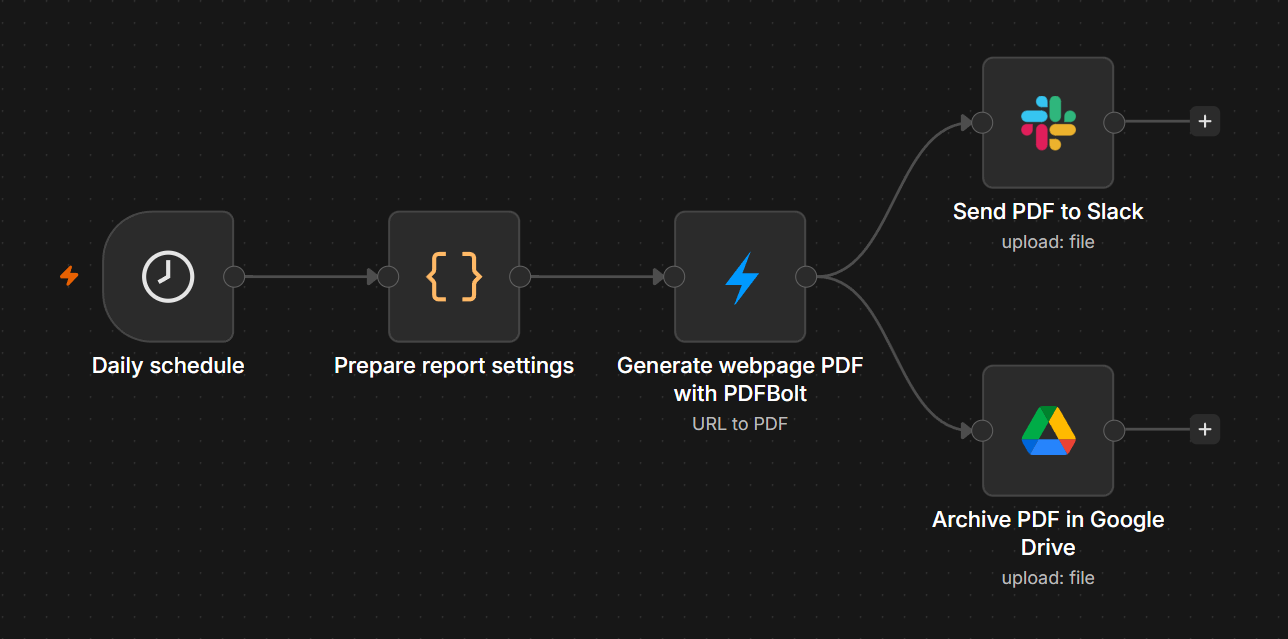
How It Works
- Schedule Trigger runs daily at the configured time.
- Code node sets the webpage URL, report name, Slack message, and dated PDF filename.
- PDFBolt renders the webpage URL and returns the PDF as binary field
data. - Slack uploads the generated PDF to the selected channel.
- Google Drive archives the same PDF file.
Use Network Idle when the page loads charts, images, or async data. For pages with a clear loading marker, use Wait For Selector. If the page uses lazy-loaded content, Wait For Function can wait until the browser has loaded the images you need.
The URL does not have to be fully public, but PDFBolt must be able to reach it. Public pages need no extra authentication. Protected pages can use HTTP Credentials, Cookies, or Extra HTTP Headers in the PDFBolt node's Additional Options. For the full option list, see the conversion parameters documentation. For direct API usage outside n8n, see the URL to PDF API.
The same data binary field can be passed to Gmail, Slack, Google Drive, Dropbox, or another storage node.
Which PDFBolt Node Operation Should You Use in n8n?
| PDFBolt node operation | Use when | Good workflow fit |
|---|---|---|
| Convert Template to PDF | One reusable layout receives different data. | Invoices, receipts, certificates, quotes, contracts. |
| Convert HTML to PDF | The workflow receives or prepares the full HTML. | Event programs, custom reports, generated summaries. |
| Convert URL to PDF | The content already exists as a webpage. | Dashboards, reports, archive snapshots, status pages. |
Use Convert Template to PDF when the layout should stay reusable and only the values change. Use Convert HTML to PDF when the workflow or another app already has the full HTML. Use Convert URL to PDF when the source already exists as a webpage and the PDF should match the rendered page.
Common n8n PDF Workflow Issues
1. The PDF is generated but not attached
Check the binary field name. PDFBolt's Direct endpoint returns the PDF as binary field data. Gmail, Slack file upload, Google Drive, and other file nodes need to read that same binary field.
2. Template fields are blank
The keys in templateData must match the variables in your PDFBolt template. If your template uses {{invoice_number}}, the workflow must send invoice_number, not invoiceNumber.
If an n8n expression turns an array or nested object into a string, wrap it with JSON.stringify(...) before sending it to PDFBolt. This matters for fields such as line_items.
3. Webpage images or charts are missing
Use a wait option. Network Idle is a good default for dashboards and pages with async requests. For pages with lazy images, use Wait For Function to wait until images finish loading.
4. Stripe tax rates do not show per line item
Stripe invoice payloads can include invoice-level tax totals even when line-level tax_rates arrays are empty. Use invoice-level tax for a simple PDF. If you need exact tax rate labels per line item, fetch tax rate details from Stripe before sending data to PDFBolt.
FAQ
Can n8n generate PDFs?
Yes. n8n can generate PDFs by calling a PDF service such as PDFBolt through a community node or HTTP Request node. With PDFBolt, n8n can generate PDFs from templates, HTML, or URLs.
Can I import n8n PDF workflow templates?
Yes. Import the workflow JSON or use the published n8n workflow page, then replace the parts tied to your setup: PDFBolt API key, app credentials, Template ID, target URL, webhook payload, or delivery channel.
How do I generate a PDF from HTML in n8n?
Use the PDFBolt community node and set the operation to Convert HTML to PDF. Paste or map your HTML into the HTML field, choose Direct if you need a binary PDF response, then pass the data binary field to Gmail, Slack, Google Drive, or a webhook response.
How do I generate a PDF from a PDFBolt template in n8n?
Create or pick a PDFBolt template, publish it, and paste its Template ID into the PDFBolt node. Set the operation to Convert Template to PDF, then send templateData from n8n with keys that match the variables in your template.
How do I attach a generated PDF to Gmail in n8n?
Use PDFBolt with the Direct endpoint, then configure Gmail to use the binary attachment field data. If you rename nodes or binary fields, update the Gmail attachment field to match.
Can I use PDFBolt with n8n Cloud?
Yes, when verified community nodes are enabled in your n8n Cloud workspace. PDFBolt is a verified n8n integration and can be added from the nodes panel. If you cannot add it there, use the HTTP Request node with the PDFBolt API instead.
Can I generate Stripe invoice PDFs in n8n?
Yes. The published workflow uses the Stripe Trigger with invoice.payment_succeeded, which covers successful payment attempts. Use invoice.paid if invoices marked as paid outside Stripe should also trigger the workflow. Map the invoice object to your PDFBolt template data, generate the PDF with PDFBolt, and send it through Gmail or another email node.
Can n8n save a webpage as PDF?
Yes. Use the PDFBolt Convert URL to PDF operation in n8n. For dashboards or pages that load data after the first request, use Network Idle, Wait For Selector, or Wait For Function before PDF generation.
What is the difference between PDFBolt Convert Template to PDF, Convert HTML to PDF, and Convert URL to PDF?
Convert Template to PDF separates layout from data, which is best for repeatable documents. Convert HTML to PDF works when the workflow already has the full HTML. Convert URL to PDF works when the content exists as a webpage and you want a PDF snapshot of that page.
Conclusion
Start with the workflow that matches your input: template data, complete HTML, a successful Stripe invoice payment, or a live webpage URL. These n8n PDF workflow templates cover the common PDFBolt patterns: templates for recurring documents, HTML for custom layouts, Stripe invoice automation, and URL conversion for dashboards or webpages.
After importing a workflow, add your PDFBolt API key, publish any template you use, paste the Template ID, and run one full test through the trigger. That confirms the PDF generation, binary attachment, and final response work together.
For setup details, start with the PDFBolt community node guide.