Generate PDFs with Antigravity CLI and PDFBolt
Connect Google Antigravity CLI to PDFBolt to generate PDFs from prompts, convert web pages to PDF, and create reusable templates for invoices, proposals, and reports.
PDFBolt hosts the MCP server. Connect your PDFBolt account through OAuth without entering a PDFBolt API key or running a server locally.
Before You Start
You need a PDFBolt account and Antigravity CLI installed and signed in.
Open a terminal in your project folder. The configuration below applies to that workspace.
1. Add the PDFBolt MCP Server
Create an .agents directory in your project’s root folder if it does not exist. Inside it, create or open mcp_config.json and add the following configuration:
{
  "mcpServers": {
    "pdfbolt": {
      "serverUrl": "https://api.pdfbolt.com/mcp"
    }
  }
}
If the file already contains MCP servers, add the pdfbolt entry to the existing mcpServers object without changing your other settings.
To make PDFBolt available across workspaces, use ~/.gemini/config/mcp_config.json instead. See the Antigravity MCP configuration reference for more options.
Save the file, then start or restart Antigravity CLI from your project folder.
If prompted, confirm that you trust the workspace so the CLI can load its configuration.
2. Authorize PDFBolt Access
In your Antigravity CLI session, enter:
/mcp
Select pdfbolt, press Enter, and choose Authenticate. Before authorization, the server may show Unauthorized or Auth Needed.
If your browser does not open automatically, open the authorization URL shown in the terminal. Sign in to PDFBolt if prompted, review the requested permissions, and select Allow access.
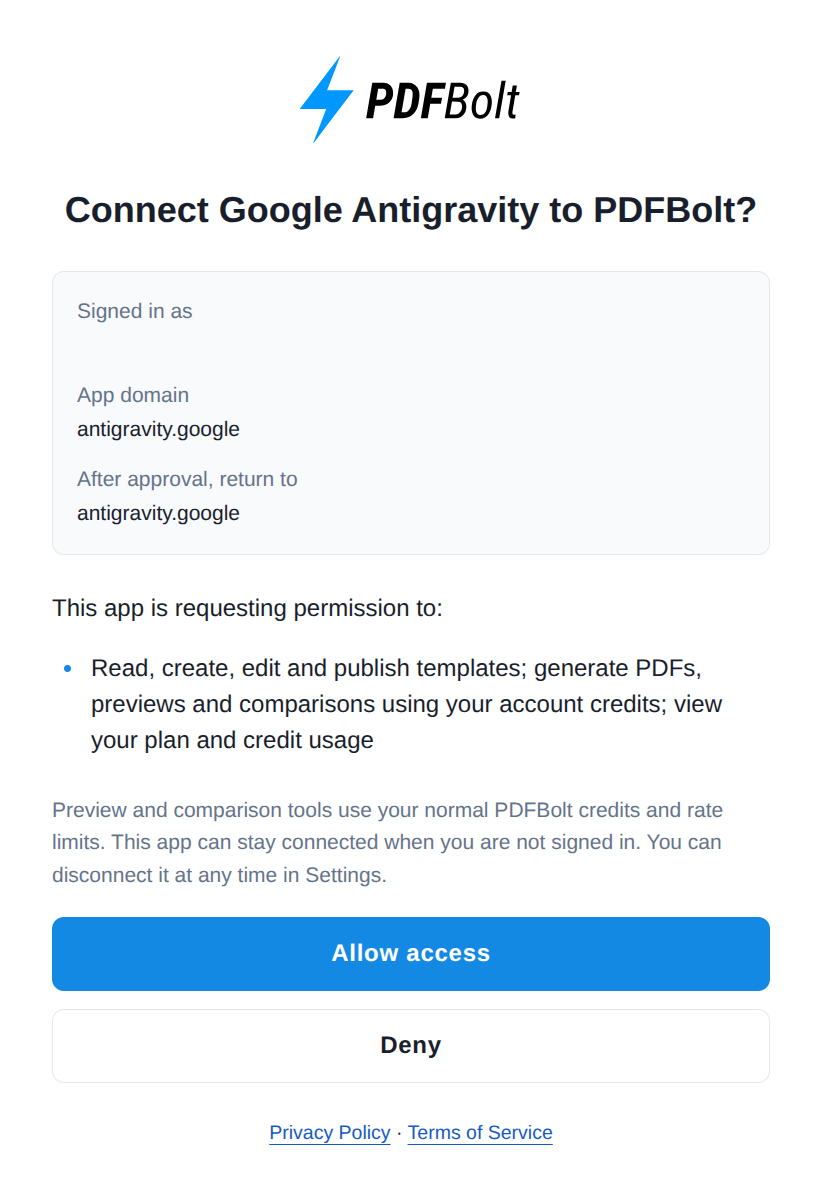
If the browser displays an authorization code, copy it and paste it into the CLI prompt. Once authentication succeeds, return to the MCP panel. PDFBolt should appear as Authed with its tools listed.
3. Check the Connection
Close the MCP panel with Esc and send:
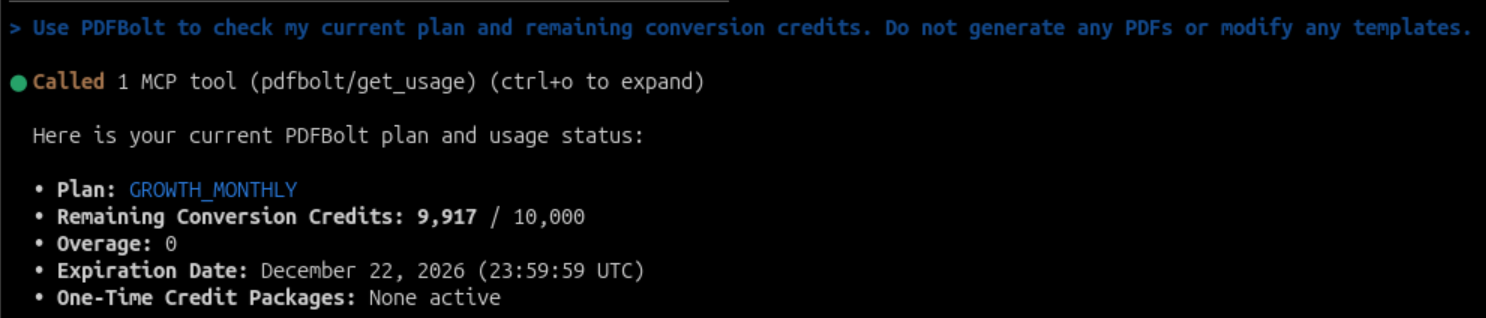
Use PDFBolt to check my current plan and remaining credits. Do not generate any PDFs.
If Antigravity asks to call pdfbolt/get_usage, approve the request. Antigravity should return your PDFBolt plan and remaining credits. Checking usage does not consume conversion credits.
4. Generate a PDF from a Prompt
Describe the document you need, including its content, page size, and layout preferences:
Use PDFBolt to create a one-page A4 PDF quote for Acme Studio: website design for $600 and development for $900. Show the total of $1,500. Use a navy heading and a clear pricing table. Return a PDF download link without saving a template.
Antigravity prepares the HTML and uses PDFBolt to generate the PDF. Approve the conversion if prompted.
Open the download link to review and save the PDF. Links for PDFs stored by PDFBolt are valid for 24 hours. Each successful PDF generation uses your PDFBolt conversion credits.
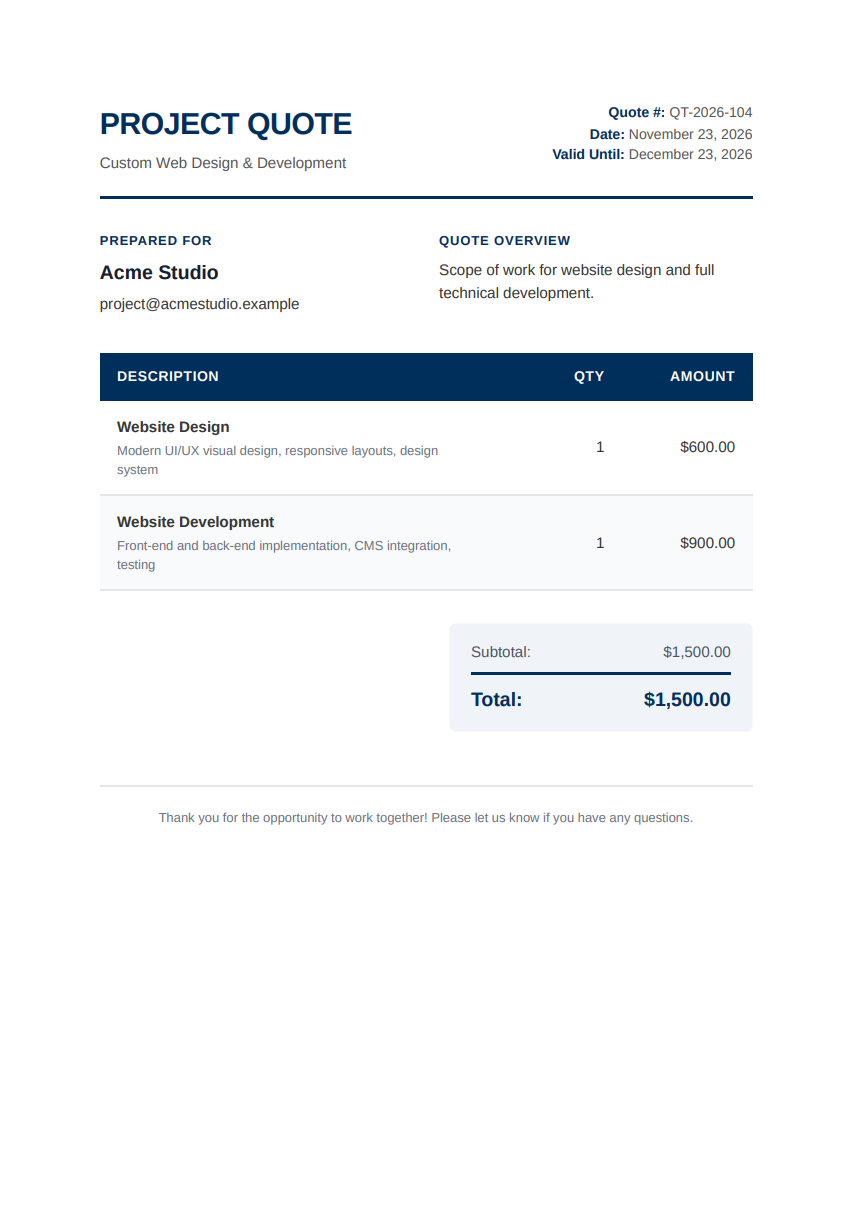
Your document’s layout may differ from this example. To revise it, tell Antigravity what to change. Generating a revised PDF uses additional credits.
Troubleshooting
PDFBolt does not appear in the MCP panel
Check that .agents/mcp_config.json is in your project’s root folder and contains valid JSON with a mcpServers object and a pdfbolt entry. If you use the global configuration, check ~/.gemini/config/mcp_config.json instead.
Save any changes, restart Antigravity CLI from your project folder, and enter /mcp again.
PDFBolt shows Unauthorized or Auth Needed
Enter /mcp, select pdfbolt, and choose Authenticate. Complete authorization with the correct PDFBolt account and paste the code into the CLI if prompted.
If authentication succeeds but the panel still shows an error, choose Restart for the PDFBolt server and repeat the usage check from step 3.
Antigravity cannot download the generated PDF
If the response includes a download link, open it in your browser and save the PDF before it expires.
If no link is available, ask Antigravity to generate the PDF with a download link. This may require another conversion and use additional credits. To avoid this extra step, request a download link in your original prompt.
For other connection or conversion errors, see MCP troubleshooting.
Related Documentation
📄️ PDF MCP Server
See the available tools, account permissions, and download options
📄️ PDF Layout Options
Set page dimensions, margins, orientation, and backgrounds
📄️ PDF Templates
Save layouts as templates and generate PDFs with new data