Generate PDFs with VS Code and PDFBolt
Connect PDFBolt’s MCP server to GitHub Copilot in Visual Studio Code. Ask Copilot to create a PDF from a prompt, convert a web page to PDF, or use a reusable template.
PDFBolt hosts the MCP server. Sign in with your PDFBolt account through OAuth. No local server or PDFBolt API key is required.
Before You Start
You need a PDFBolt account and VS Code with GitHub Copilot Chat enabled. Sign in to GitHub and make sure you can select Agent mode in the chat.
1. Add the PDFBolt MCP Server
Open the Command Palette with Ctrl+Shift+P on Windows or Linux, or Cmd+Shift+P on macOS.
-
Run MCP: Add Server.
-
Choose HTTP (HTTP or Server-Sent Events).
-
Enter the server URL:
https://api.pdfbolt.com/mcp -
Enter
pdfboltas the server ID. -
Select Copilot Global.

VS Code saves the configuration below in ~/.copilot/mcp-config.json by default, making PDFBolt available across your projects. The steps above save this configuration automatically.
{
  "mcpServers": {
    "pdfbolt": {
      "type": "http",
      "url": "https://api.pdfbolt.com/mcp",
      "tools": ["*"]
    }
  }
}
If you edit the file manually, keep any existing server entries. See the VS Code MCP configuration reference for other configuration locations and formats.
2. Authorize PDFBolt Access
Run MCP: List Servers from the Command Palette and select pdfbolt. If the server is stopped, select Start Server. Select Trust if prompted.
If the status is Authentication required, select Authenticate.
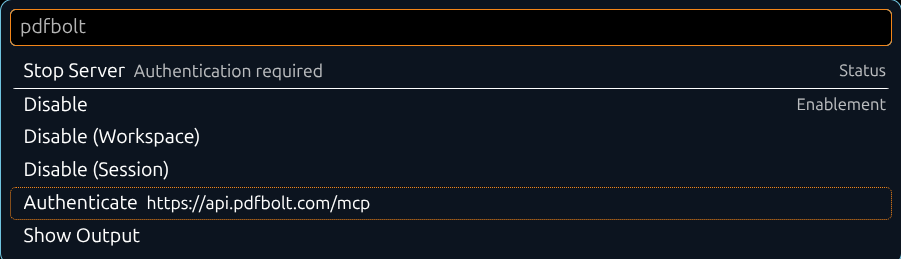
Allow VS Code to authenticate to api.pdfbolt.com and open the authorization page in your browser when prompted.
Sign in to your PDFBolt account if prompted. On Connect Visual Studio Code to PDFBolt?, review the permissions and select Allow access. This grants access to PDF generation, templates, and your plan and credit usage.
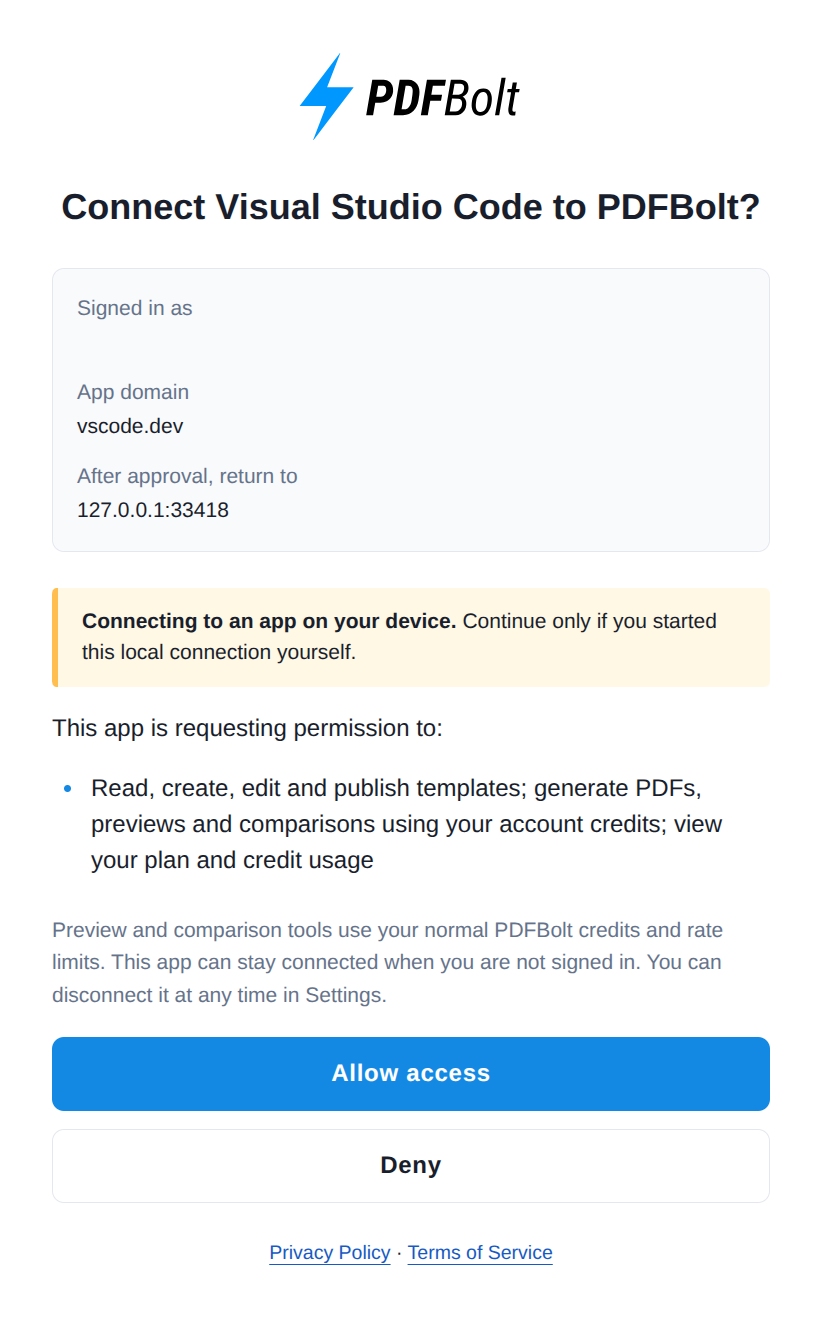
After authorization, return to VS Code.
3. Check the Connection
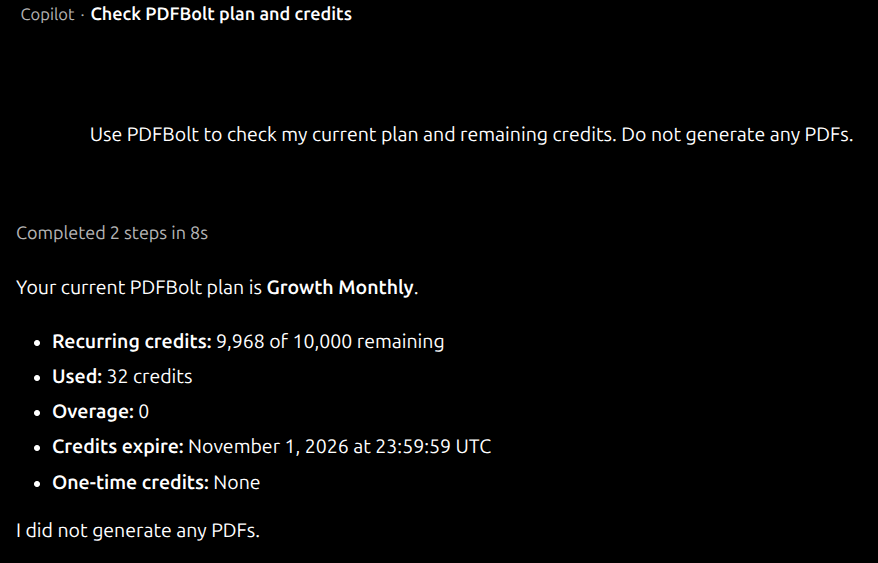
Open Copilot Chat, start a new conversation, and select Agent mode. Send:
Use PDFBolt to check my current plan and remaining credits. Do not generate any PDFs.
Approve the PDFBolt tool request if prompted. Copilot should return your current plan and remaining credits. Checking usage does not consume PDF generation credits.
4. Generate a PDF from a Prompt
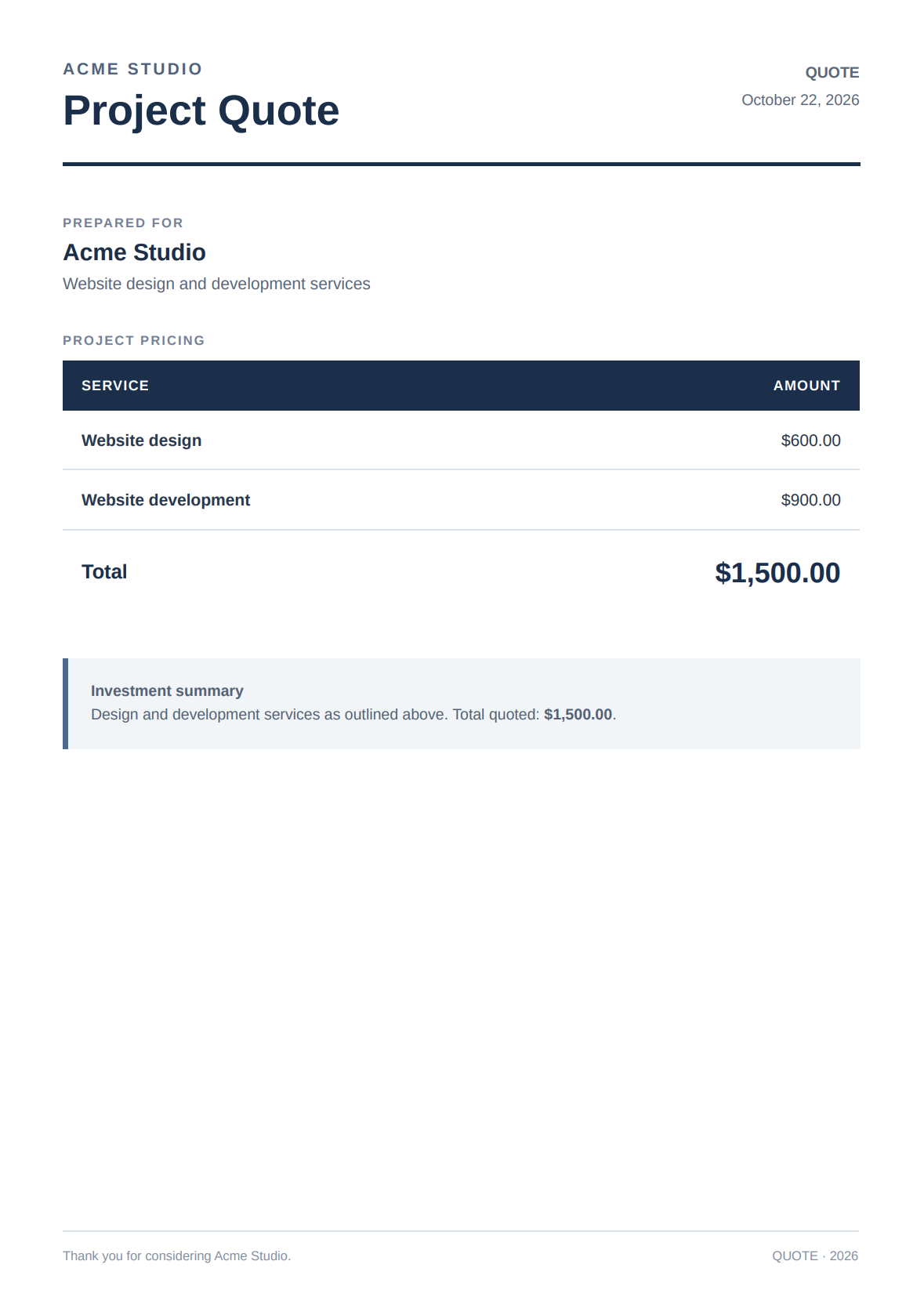
In the same conversation, describe the document you need, including its content, page size, and layout. For example:
Use PDFBolt to create a one-page A4 quote for Acme Studio: website design for $600 and development for $900. Show the total of $1,500. Use a navy heading and a clear pricing table. Give me a PDF download link without saving a template.
Copilot prepares the HTML and sends it to PDFBolt for HTML-to-PDF conversion.
Open the download link to review and save the PDF before the link expires. Generating a PDF uses your PDFBolt credits.
Troubleshooting
The server shows Authentication required
Run MCP: List Servers, select pdfbolt, and choose Authenticate. Sign in to PDFBolt if prompted, then approve the connection in your browser and return to VS Code.
Copilot cannot find PDFBolt's tools
Check that the chat is in Agent mode and PDFBolt’s tools are enabled under Configure Tools. Run MCP: List Servers, select pdfbolt, and start the server or authenticate if needed.
If PDFBolt is connected but its tools are still unavailable, start a new Agent conversation and try the credit-check prompt again. For connection errors, select Show Output in the server menu.
For workspace trust settings or organization restrictions, see the VS Code MCP troubleshooting guide.
Copilot looks for a PDFBolt API key
Follow Authorize PDFBolt Access, then start a new Agent conversation. PDFBolt uses OAuth for this connection, so you do not need to provide an API key.
The PDF was generated, but there is no file in the workspace
Open the download link in the response and save the PDF, or ask Copilot to download the file into your workspace.
Download the PDF before the link expires. Generating it again uses additional PDFBolt credits.
For other errors, see MCP troubleshooting.
Related Documentation
📄️ PDF Layout Options
Control page size, orientation, margins, and other PDF settings.
📄️ PDF Templates
Reuse document layouts with different data.
📄️ Template API
Create and manage PDFBolt templates through API requests.