Generate PDFs with Hermes Agent and PDFBolt
Add PDFBolt's MCP server to Hermes Agent to create PDFs from your terminal conversations. Describe a quote, invoice, or report, and Hermes can prepare the document and return a PDF download link.
The connection uses OAuth to access your PDFBolt account. PDFBolt hosts the server, so you do not need to run it locally or provide a PDFBolt API key.
Before You Start
You need a PDFBolt account and Hermes Agent with remote MCP OAuth support.
The steps below use Hermes in a local terminal.
1. Add the PDFBolt MCP Server
Run this command in your terminal:
hermes mcp add pdfbolt --url https://api.pdfbolt.com/mcp --auth oauth
Hermes starts the connection and opens your browser for authorization. If the browser does not open, use the authorization URL printed in the terminal.
2. Authorize PDFBolt Access
Sign in to PDFBolt if prompted. On Connect Hermes Agent to PDFBolt?, review the requested permissions and select Allow access. The connection allows PDF generation, template management, and access to your plan and credit usage.
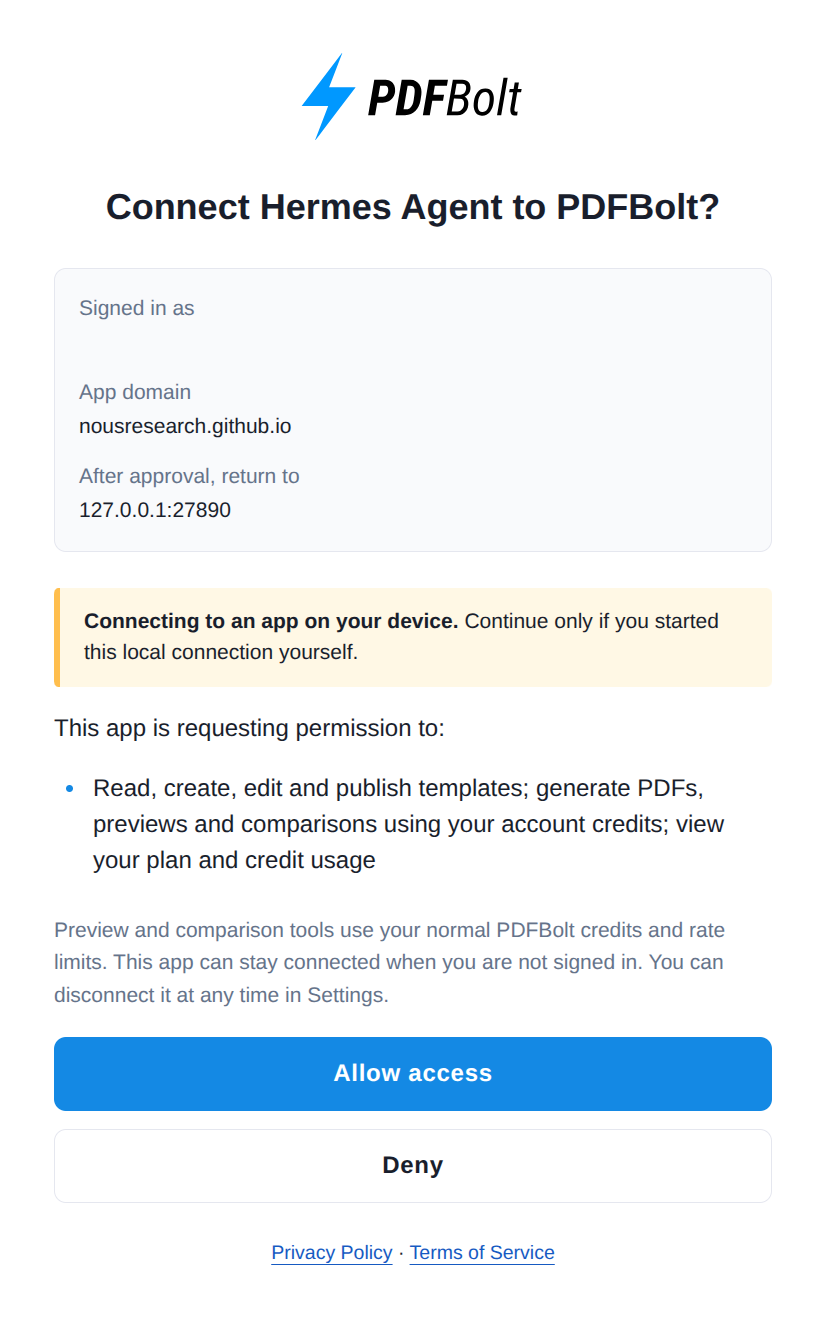
Once the browser shows Authorization Successful, return to the terminal. Hermes lists the available PDFBolt tools. When asked whether to enable all tools, press Enter to accept the default selection and finish saving the server.
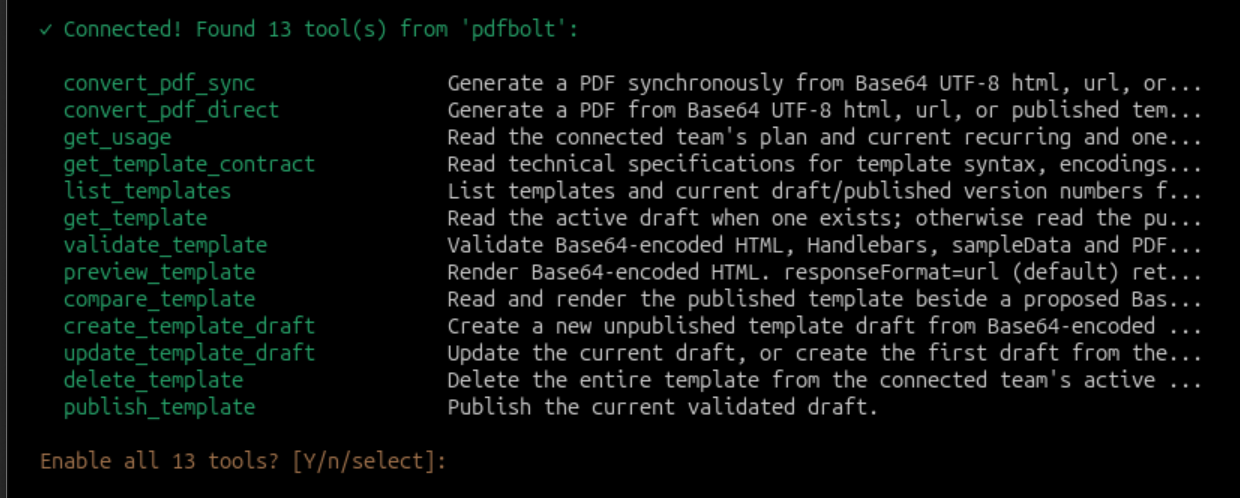
By default, Hermes saves the server configuration in ~/.hermes/config.yaml. The basic connection settings are shown below. You do not need to add them again:
mcp_servers:
  pdfbolt:
    url: https://api.pdfbolt.com/mcp
    auth: oauth
If you edit the file manually, preserve other server entries. For named profiles and additional settings, see the Hermes MCP configuration reference.
3. Check the Connection
Start a new conversation from your working directory:
hermes
Send this prompt:
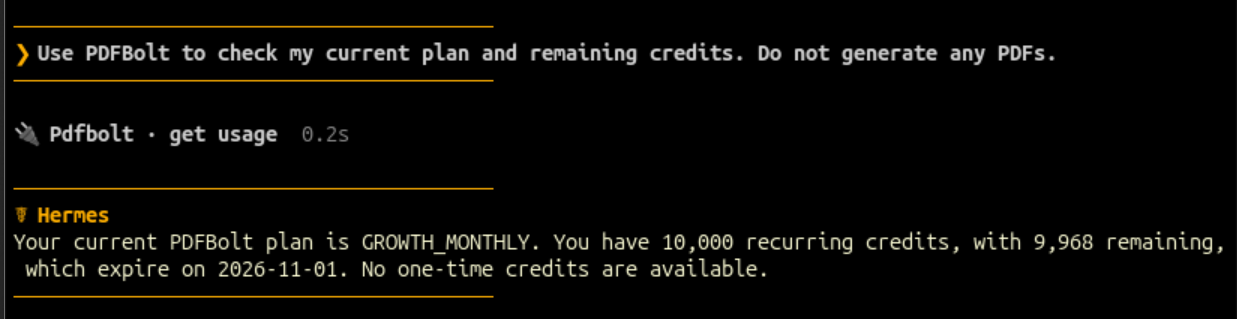
Use PDFBolt to check my current plan and remaining credits. Do not generate any PDFs.
Hermes should return your current plan and remaining credits. Checking usage does not consume PDF generation credits.
4. Generate a PDF from a Prompt
Describe the content and layout in the same conversation. For example:
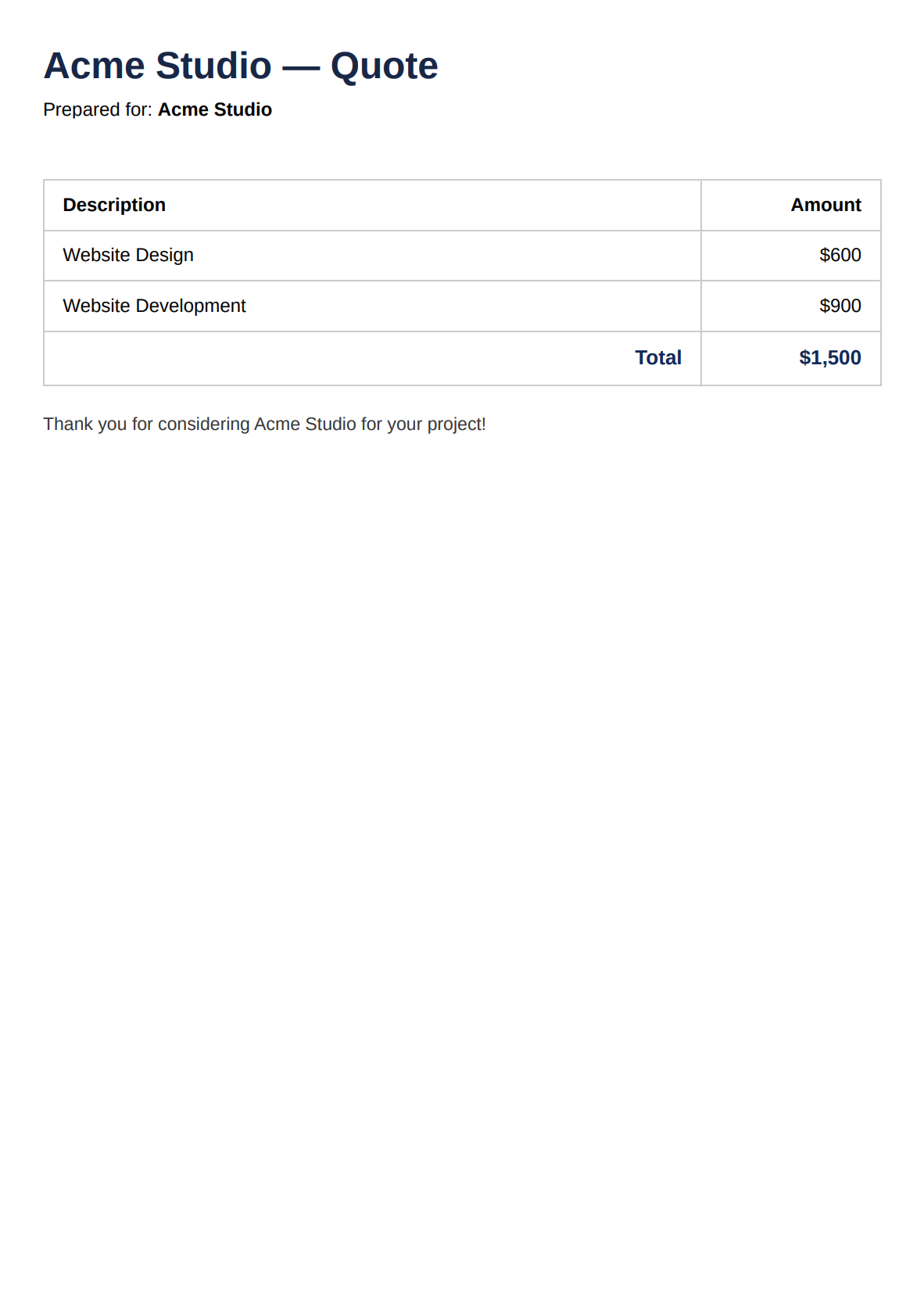
Use PDFBolt to create a one-page A4 quote for Acme Studio: website design for $600 and development for $900. Show the total of $1,500. Use a navy heading and a clear pricing table. Give me a PDF download link without saving a template.
Hermes prepares the HTML and sends it to PDFBolt for HTML-to-PDF conversion.
Open the download link to review and save the PDF before the link expires. Generating a PDF uses your PDFBolt credits.
Troubleshooting
Authorization times out or the browser shows Connection refused
Check the terminal for a timeout message. If Hermes stopped waiting for authorization, start the authorization process again.
If prompted to save the server configuration anyway, enter y. Then run:
hermes mcp login pdfbolt
Complete authorization in the newly opened browser tab. If it times out again, see the OAuth timeout settings in the Hermes MCP configuration reference.
Hermes cannot find the PDFBolt tools
Start a new Hermes conversation, or run /reload-mcp in an existing one. To check the saved server and its connection, run these commands in your terminal:
hermes mcp list
hermes mcp test pdfbolt
If the server connects but its tools are disabled, run hermes mcp configure pdfbolt in your terminal and enable the PDFBolt tools. If you use named profiles, make sure you configure the server and start the conversation in the same profile.
The PDF is blank or PDFBolt rejects the Base64 content
Ask Hermes to check that the HTML is complete and correctly encoded as Base64, and that the full content was sent to PDFBolt. Generating another PDF uses additional credits.
For other errors, see MCP troubleshooting.
Related Documentation
📄️ PDF MCP Server
Review the available tools, permissions, and download options.
📄️ PDF Layout Options
Set page size, margins, orientation, headers, and footers.
📄️ PDF Templates
Prepare reusable layouts for documents with changing data.