Generate PDFs with Codex and PDFBolt
Connect OpenAI Codex CLI to PDFBolt to generate PDFs from prompts, convert web pages to PDF, and work with reusable templates. Ask for a download link or ask Codex to save the PDF locally.
Codex connects to PDFBolt through MCP. PDFBolt hosts the server, so you do not need to run one locally or provide a PDFBolt API key. You sign in to your PDFBolt account through OAuth.
Before You Start
You need a PDFBolt account and Codex CLI installed and signed in.
1. Add the PDFBolt MCP Server
Run this command in your terminal, outside the Codex conversation. You can run it from any directory:
codex mcp add pdfbolt --url https://api.pdfbolt.com/mcp
Codex saves the server in your user configuration and starts the OAuth sign-in flow.
2. Sign In and Allow Access
If the browser does not open automatically, open the authorization URL shown in your terminal. Sign in to PDFBolt if prompted, then review the permissions on the Connect Codex to PDFBolt? screen and select Allow access.
This lets Codex generate PDFs and manage templates using your PDFBolt account.
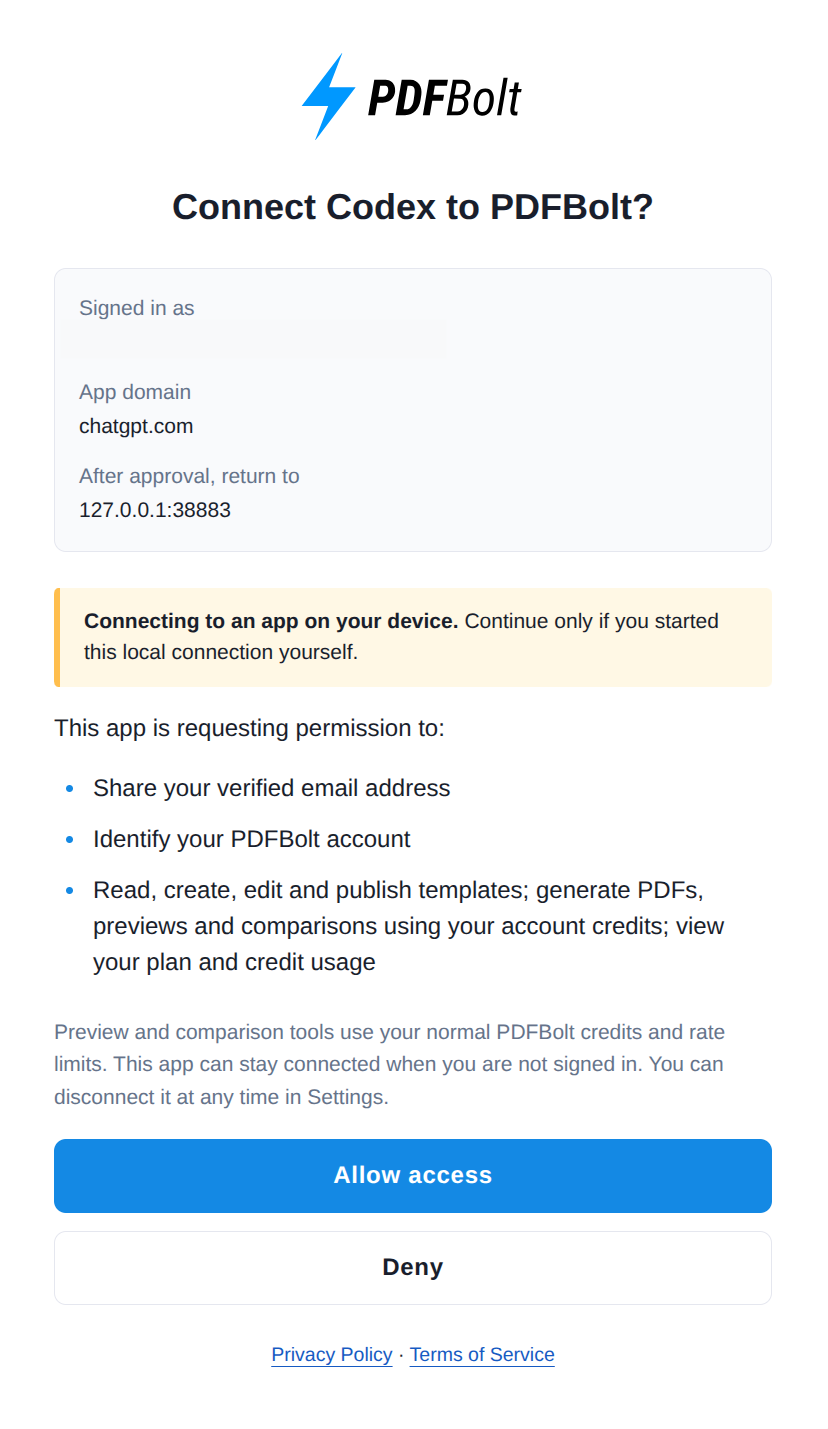
Once the browser confirms successful authentication, return to your terminal. It should show Successfully logged in.
If the server is already configured but you still need to sign in, run:
codex mcp login pdfbolt
3. Check the Connection
Run this command in your terminal to check that PDFBolt is listed:
codex mcp list
Start a new Codex session:
codex
Inside the Codex conversation, enter /mcp. PDFBolt should appear as connected.
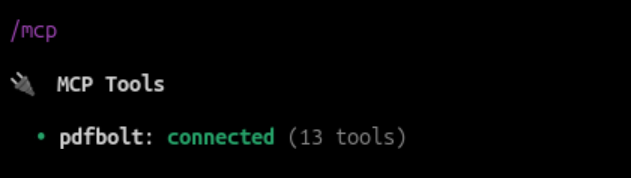
To check that Codex can access your PDFBolt account, send this prompt:
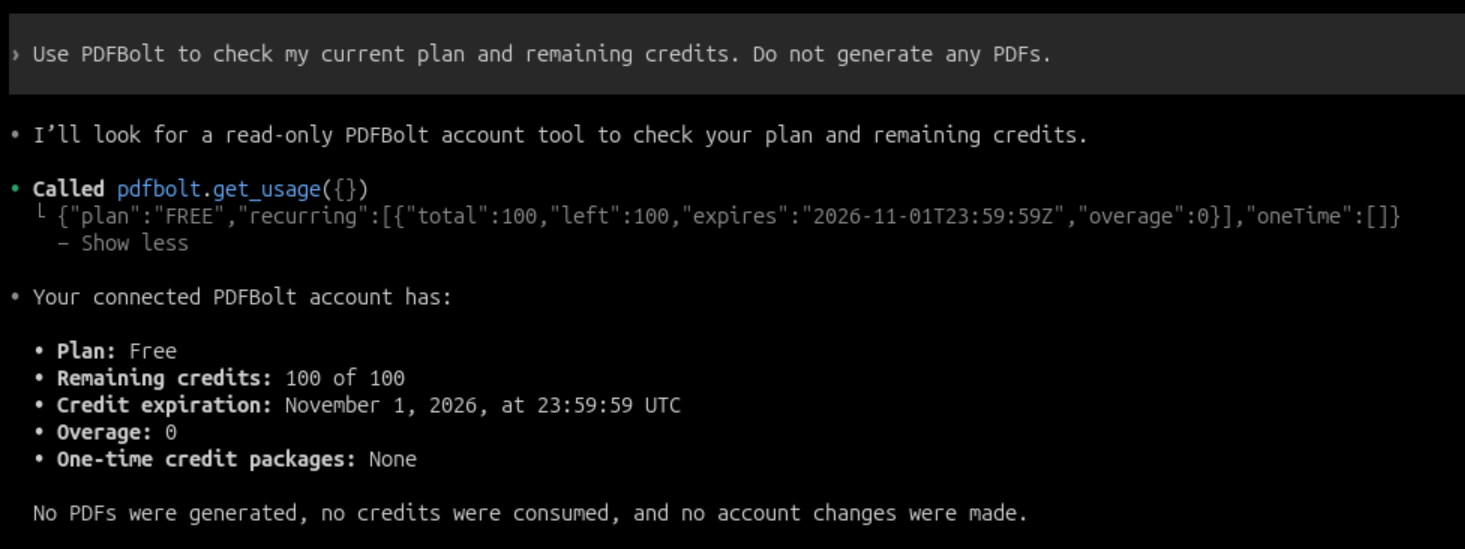
Use PDFBolt to check my current plan and remaining credits. Do not generate any PDFs.
If Codex asks for permission, approve the request. Codex should return your plan and remaining credits. This check does not consume PDF generation credits.
4. Generate a PDF from a Prompt
Describe the document you want Codex to create. For example:
Use PDFBolt to create a one-page A4 quote for Acme Studio: website design for $600 and development for $900. Show the total of $1,500. Use a navy heading and a clear pricing table. Give me a PDF download link without saving a template.
Codex prepares the content and uses PDFBolt to generate the PDF. Open the download link in its reply to view the document.
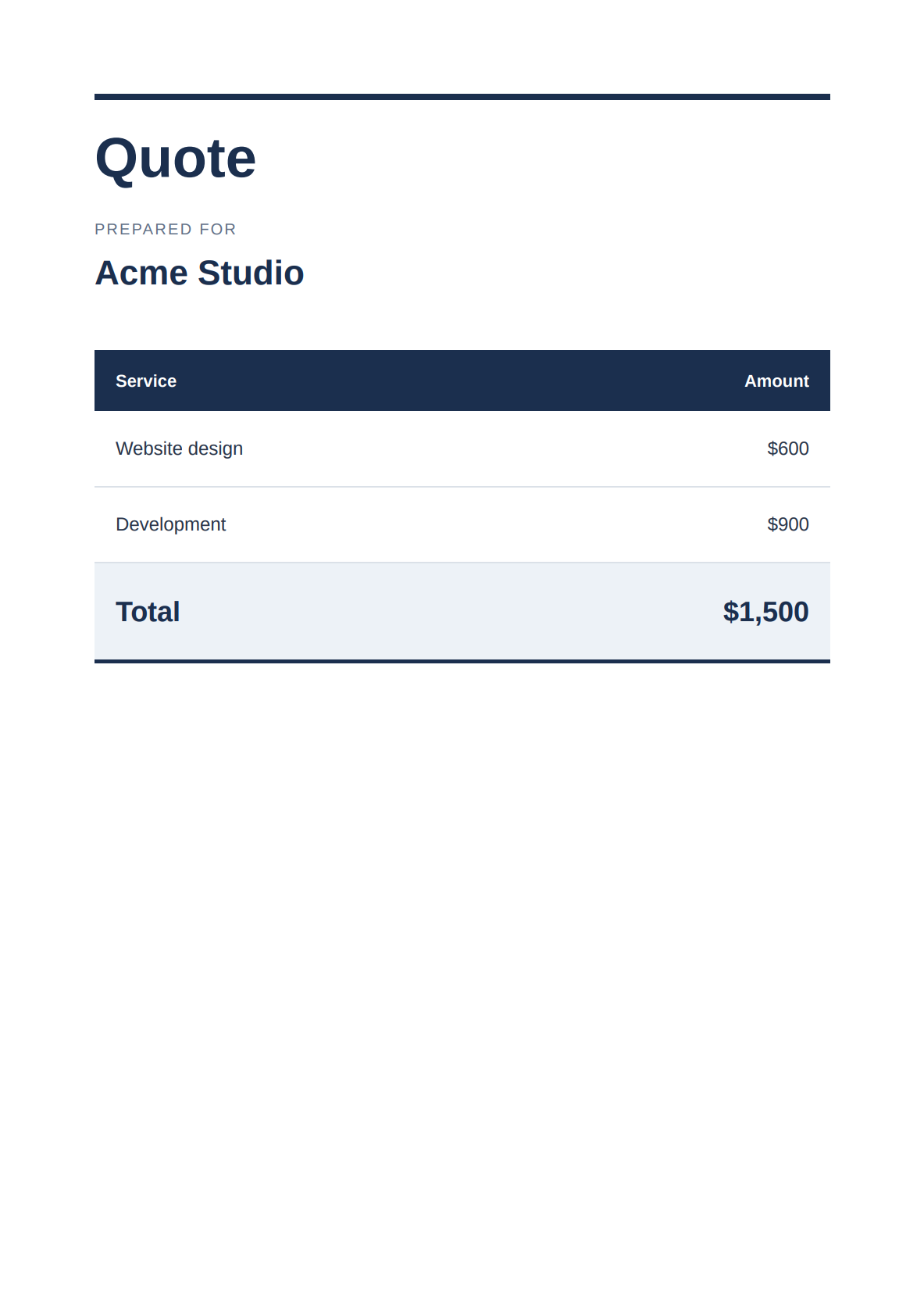
The layout may vary between conversations. Save the PDF before the download link expires.
Manual MCP Configuration
You can also configure PDFBolt by editing ~/.codex/config.toml instead of running codex mcp add. Add the following entry, keeping your existing settings and servers:
[mcp_servers.pdfbolt]
url = "https://api.pdfbolt.com/mcp"
Save the file, then run this command in your terminal and complete the browser sign-in:
codex mcp login pdfbolt
Start a new Codex session to use the connection. See the Codex MCP configuration reference for more options.
Troubleshooting
OAuth sign-in fails with an HTTP URL
If you see OAuth discovery redirect to non-same-origin URL rejected, check the PDFBolt server URL in ~/.codex/config.toml. It should be https://api.pdfbolt.com/mcp.
Save the corrected URL, then sign in again:
codex mcp login pdfbolt
PDFBolt is missing or shows no tools
Run codex mcp list in your terminal. If PDFBolt is missing, add it using the command in Add the PDFBolt MCP Server.
If PDFBolt is listed but requires authentication, run codex mcp login pdfbolt and complete the browser sign-in. Start a new Codex session and enter /mcp to check the connection.
Codex cannot download the generated PDF
Open the download link in your browser before it expires. Codex may be unable to download a file because of network restrictions, even when PDF generation succeeded.
Check the existing link before requesting another PDF. A new conversion uses additional credits.
For other errors, see the MCP troubleshooting guide.
Related Documentation
📄️ PDF Layout Options
Set the page size, margins, orientation, headers, and footers.
📄️ PDF Templates
Learn how to create, publish, and reuse templates.
📄️ Template API
Manage templates from your application through the REST API.