Generate PDFs with ChatGPT and PDFBolt
Use the PDFBolt plugin in ChatGPT to generate PDFs from prompts, convert web pages to PDF, or create reusable templates for invoices, proposals, and reports.
PDFBolt hosts the MCP server. Connect your PDFBolt account through OAuth without entering an API key.
This guide covers ChatGPT in a web browser. For Codex, see the PDFBolt for Codex guide.
Before You Start
You need a PDFBolt account and a ChatGPT account with access to Plugins.
1. Install the PDFBolt Plugin
In ChatGPT, open Plugins, search for PDFBolt, and open its page. You can also open the PDFBolt plugin directly.
Select Install plugin.
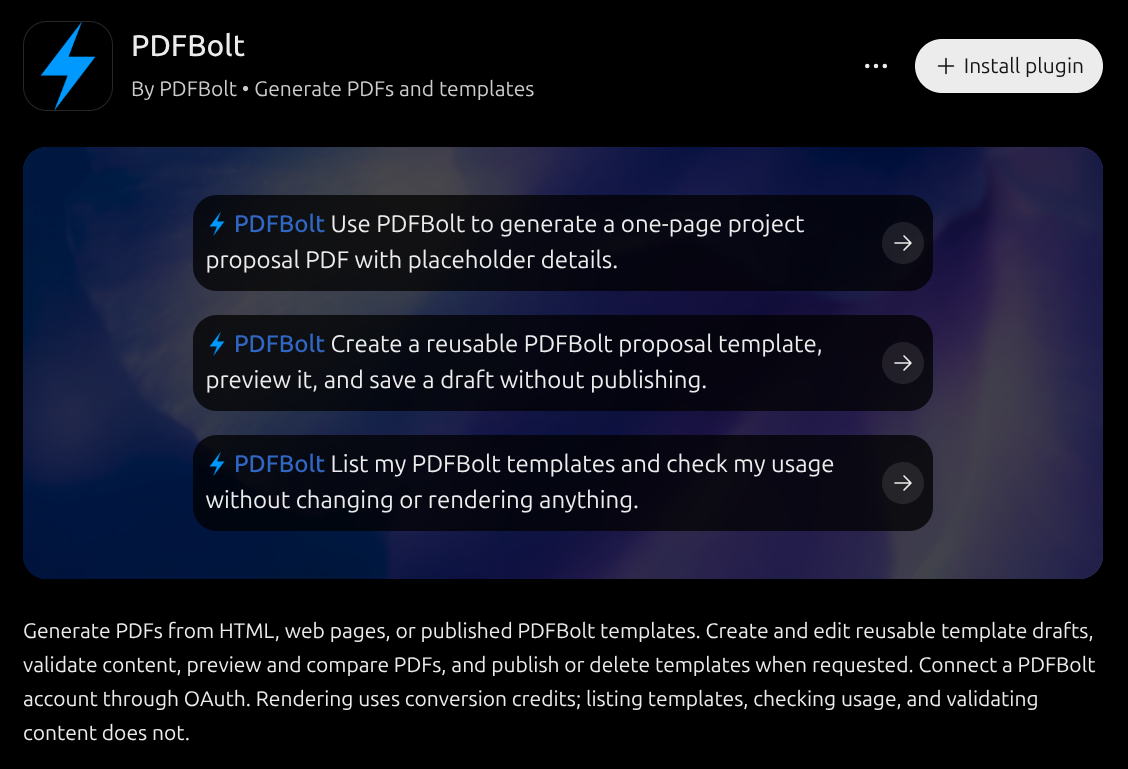
In the connection dialog, review the information about data sharing and select Connect PDFBolt.
2. Authorize PDFBolt Access
Sign in to PDFBolt if prompted. Review the requested permissions and select Allow access.
This connects your PDFBolt account so ChatGPT can generate PDFs, manage templates, and check your plan and credits.
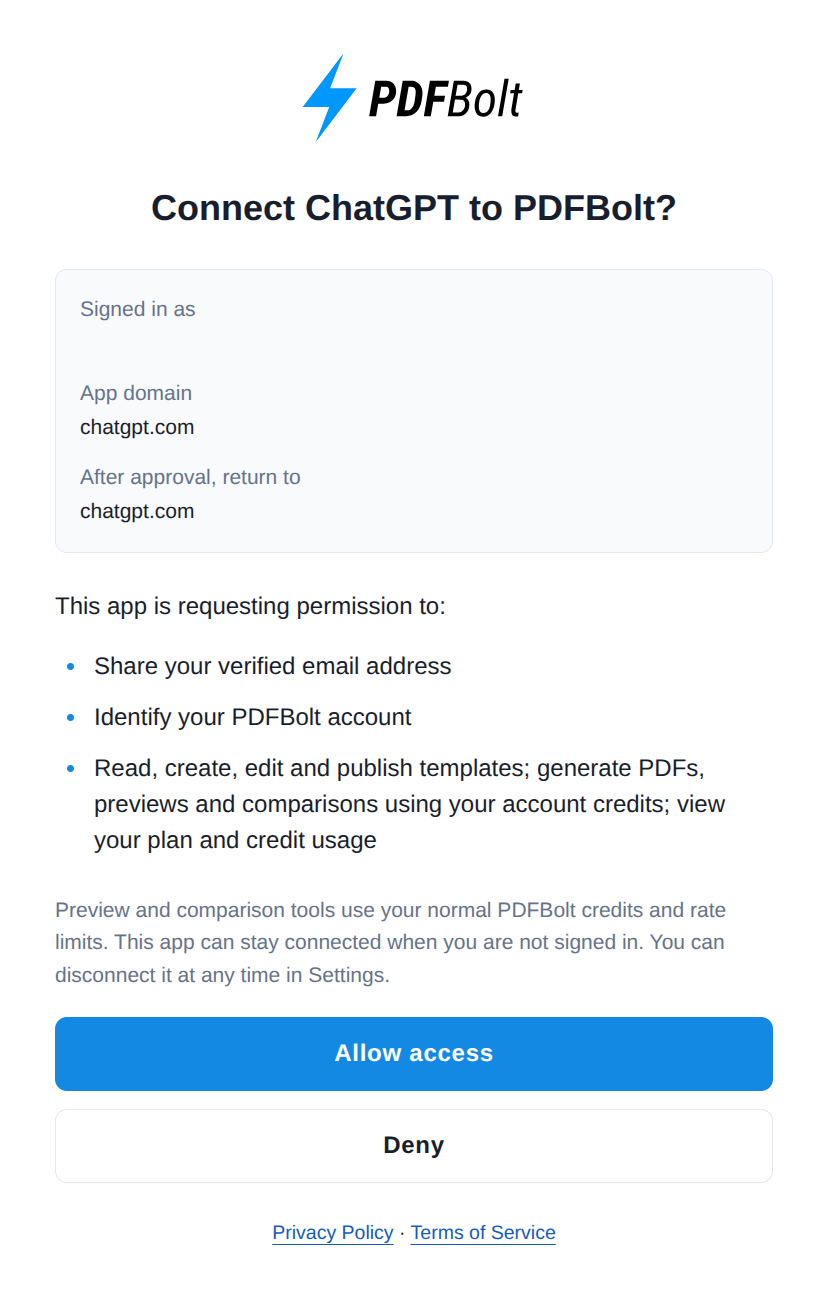
After authorization, return to ChatGPT.
3. Check the Connection
Start a new conversation in ChatGPT and send:
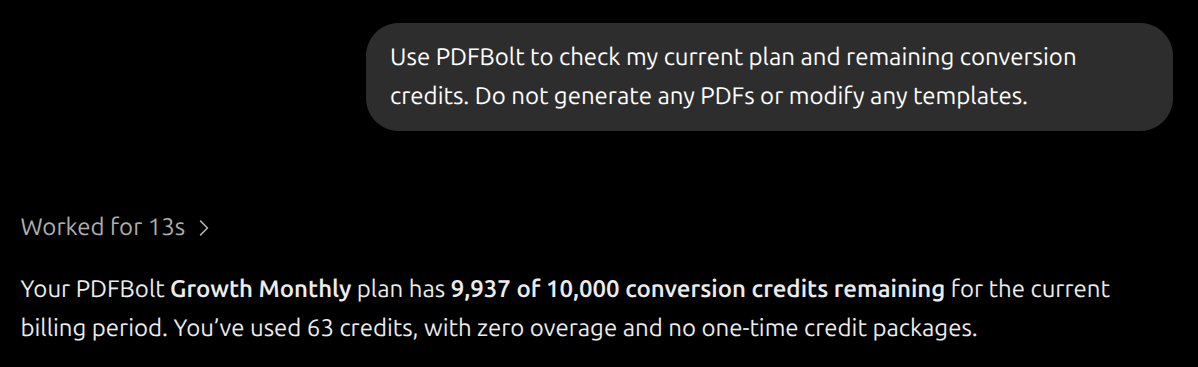
Use PDFBolt to check my current plan and remaining conversion credits. Do not generate any PDFs or modify any templates.
If ChatGPT asks for permission to use PDFBolt, approve the request.
ChatGPT should return your PDFBolt plan and remaining credits. Checking usage does not consume conversion credits.
4. Generate a PDF from a Prompt
In the same conversation, describe the document you need. Include its content, page size, and any layout preferences:
Use PDFBolt to create a one-page A4 quote for Acme Studio: website design for $600 and development for $900. Show the total of $1,500. Use a navy heading and a clear pricing table. Give me a PDF download link without saving a template.
ChatGPT prepares the HTML and uses PDFBolt to generate the PDF. The response includes a download link.
Open the download link to review and save the PDF. Links for PDFs stored by PDFBolt are valid for 24 hours. Each successful PDF generation uses your PDFBolt conversion credits.
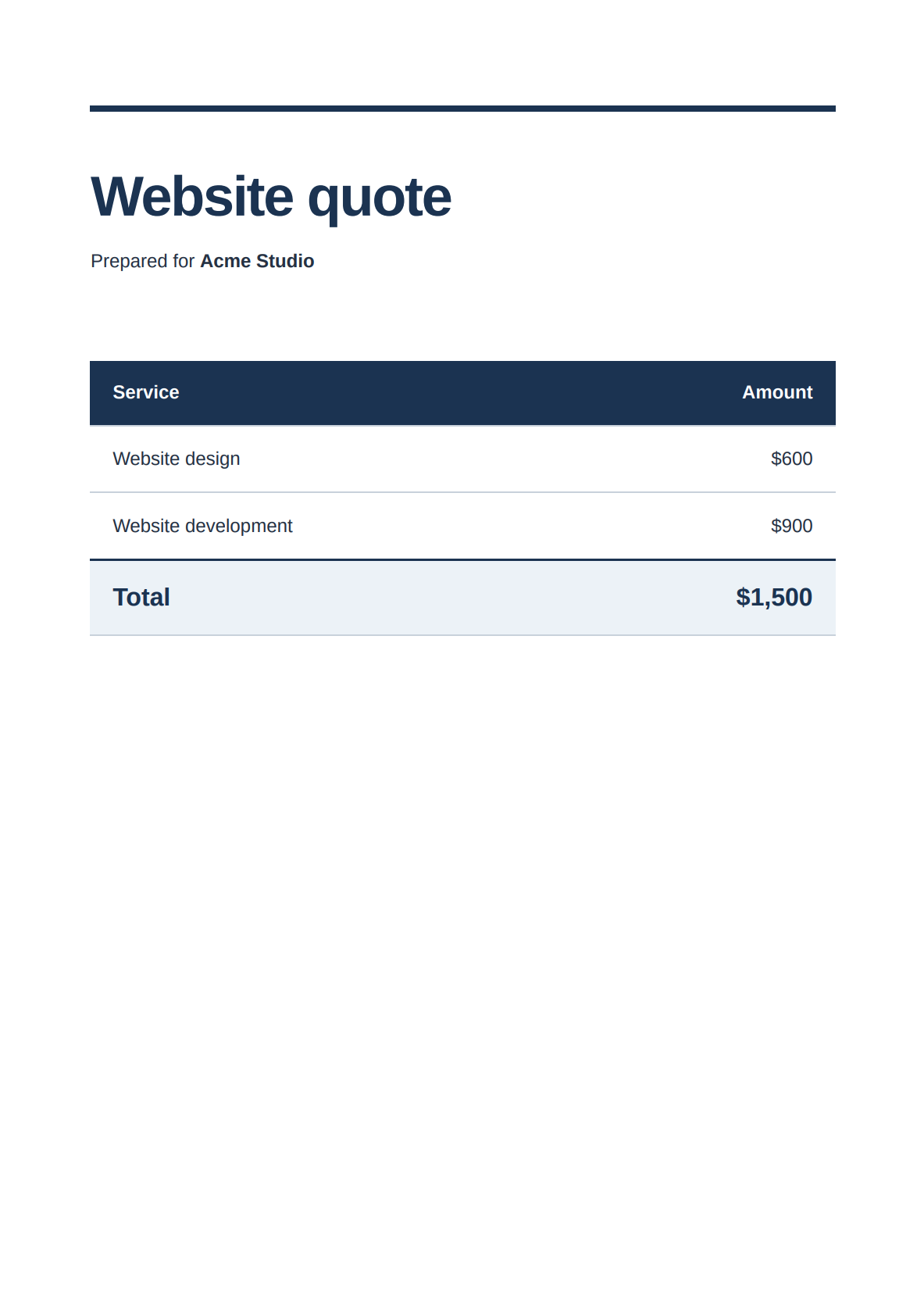
Your document’s layout may differ from this example. To revise it, tell ChatGPT what to change.
Troubleshooting
The PDFBolt plugin is unavailable
Check that you are signed in to the correct ChatGPT account and workspace. Availability may depend on your plan, region, or workspace settings. If you use a managed workspace and see Admin approval required or Disabled by admin, contact your workspace administrator.
For more help, see OpenAI’s plugin troubleshooting guide.
ChatGPT does not use PDFBolt
Check that the PDFBolt plugin is installed and your account is connected. Mention PDFBolt in your prompt and try the usage check from step 3. If prompted, complete account authorization.
ChatGPT asks you to reconnect PDFBolt
Open Settings, select Plugins, and open PDFBolt. Select Reconnect if available and sign in to the correct PDFBolt account to authorize access. Then repeat the usage check from step 3.
If the problem persists, see OpenAI’s account connection guide.
ChatGPT cannot attach or open the PDF
If the response includes a download link, open it in your browser and save the PDF before it expires. If no link is available, ask ChatGPT to generate the PDF with a download link. This may require another conversion and use additional credits.
To avoid this extra step, request a download link in your original prompt.
For other connection or conversion errors, see MCP troubleshooting.
Related Documentation
📄️ PDF MCP Server
See the available tools, account permissions, and download options
📄️ PDF Layout Options
Set page dimensions, margins, orientation, and backgrounds
📄️ PDF Templates
Save layouts as templates and generate PDFs with new data